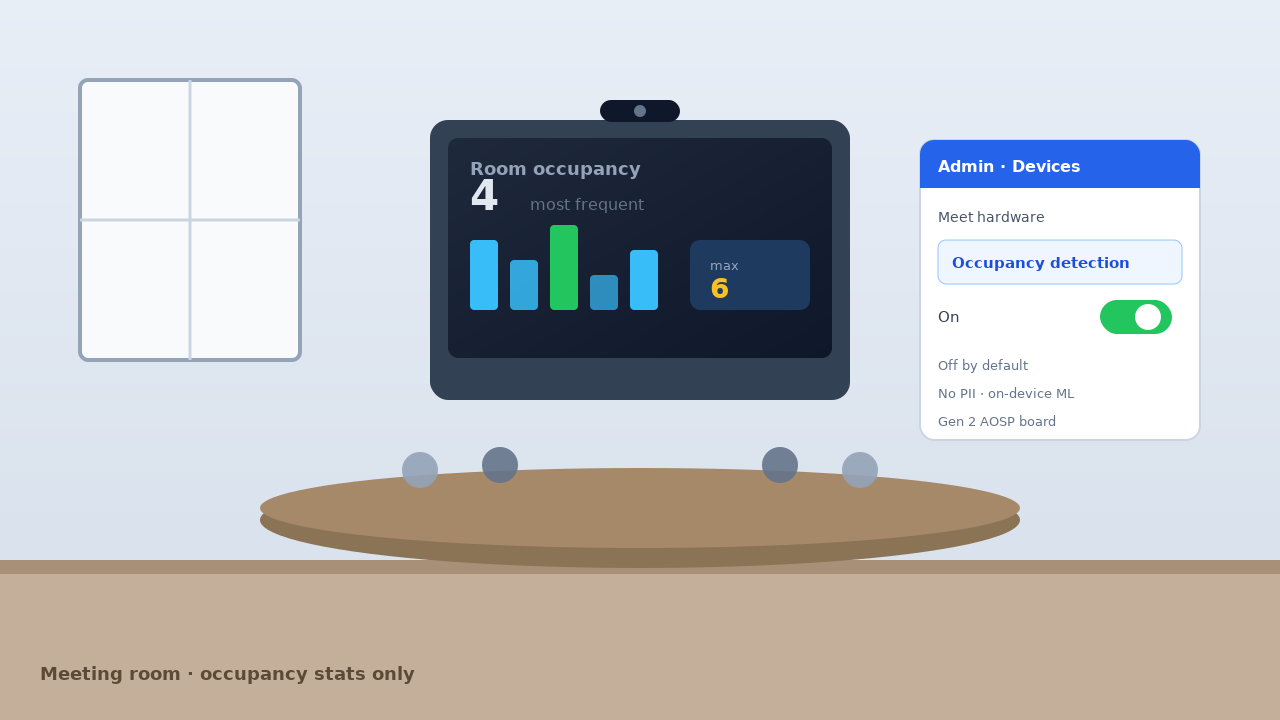
오늘은 2026년 9월 28일입니다. 아침에 Calendar 세 시차를 붙였고, 점심에는 Meet Take notes for me 기본값이 내일부터 닿는다는 글을 남겼습니다. 저녁에 Workspace Updates를 다시 훑다가, 같은 날짜에 Logitech Gen 2 방 하드웨어로 Occupancy counting이 Extended rollout을 시작한다는 문장이 따로 보였습니다. 2026년 9월 23일 글 Occupancy counting now available for Google Meet on Logitech room hardware를 2026-09-28 저녁에 as-fetched로 다시 읽었습니다. Neat AOSP 쪽 7월 발표도, 회의실 코드 Connect Room도, 점심 TNFM 설정도 아닙니다. ChromeOS Meet 하드웨어에 있던 점유 카운팅이 Android 기반 Logitech Gen 2(시작점: Logitech Rally Board 65)로 온다는 이야기만 펼칩니다.
Occupancy counting is now available for Android-based Logitech Gen 2 room hardware (starting with Logitech Rally Board 65) to help measure how meeting rooms are used. This feature brings the same occupancy counting capabilities found on ChromeOS devices to Android-based hardware.
오늘부터 열리는 범위
Rollout pace는 Rapid Release and Scheduled Release domains: Extended rollout (potentially longer than 15 days for feature visibility) starting on September 28, 2026입니다. 오늘이 시작일이고, Extended라서 15일을 넘길 수 있습니다. 아침·점심에 쓴 글과 날짜가 겹쳐도, 제품이 다릅니다. Availability는 Available now to all Google Workspace customers with Google Meet on Logitech Gen 2 AOSP hardware devices (Rally Board 65 or later) with support for earlier devices coming in a future CollabOS update입니다. Gen 1은 내년 CollabOS 업데이트로 미룹니다. Support for occupancy counting will be added next year for earlier Gen 1 devices later as part of an upcoming CollabOS update. “모든 Logitech Meet 방에 오늘 일제히 켜진다”고 단정하지 않습니다. Rally Board 65 이상 Gen 2 AOSP인지부터 확인합니다.
Getting started의 Admins 칸은 This feature will be off by default and can be enabled at the domain, organizational unit (OU), or group level입니다. End users: There is no end-user setting for this feature. 사용자 Meet 설정에 토글이 생길 거라고 기대하면 안 됩니다. 방 사용량을 보고 싶으면 Admin이 켜야 하고, 끄면 통계도 쌓이지 않습니다. Updates는 Understanding room occupancy helps organizations optimize real estate and room design based on user needs라고만 적습니다. 오래된 비디오 장비가 있는 방을 피하고 추적 카메라·오디오 바가 있는 방으로 몰리는지 보는 예시가 있습니다. 나는 고객사에 “방 리모델링 보고서용”이라고 포장하지 않고, 예약은 많은데 실제로는 비어 있는 방을 가려내는 쪽부터 말합니다.
Admin console에서 Occupancy detection 켜기
Resources에 걸린 Help Turn on occupancy detection(as-fetched 2026-09-28 evening, Last updated 2026-09-24 UTC)를 기준으로 클릭 경로를 적습니다. Occupancy detection is off by default. When occupancy detection is turned on, use the Room insights dashboard to understand how the Google Meet hardware rooms and devices are used. Before you begin에는 Use a supported camera, 미지원 카메라에도 켤 수는 있으나 제조사 문서를 보고, 전체 적용 전에 시험하라는 안내가 있습니다. Manage devices privilege for Google Meet hardware가 필요할 수 있다고 적혀 있습니다.
Google Admin console
→ Menu → Devices → Google Meet hardware → Devices
→ (단일) 장치 선택
→ Device settings 섹션 → Down arrow
→ Edit
→ Occupancy detection → On
→ Save

# 여러 대(최대 50)
→ Devices 목록에서 최대 50대 체크
→ More → Occupancy detection
라벨은 Help에 적힌 Occupancy detection입니다. Updates가 domain / OU / group level이라고 한 것과, Help의 장치 단위·최대 50대 More 메뉴가 같이 있습니다. 한 번에 51대를 고르면 More 경로가 Help 문장과 어긋날 수 있으니, 층별로 50대씩 나눕니다. 나는 고객 도메인에 권한이 있으면 시험용 Rally Board 65 한 대부터 On으로 두고, 하루이틀 Room insights에 그래프가 생기는지 본 뒤에 층을 넓힙니다. Unsupported camera에도 켤 수는 있다고 Help가 적지만, Test occupancy detection on any unsupported cameras prior to turning it for all of your cameras라는 문장을 건너뛰지 않습니다. 권한이 없으면 담당자에게 “Devices → Device settings → Occupancy detection이 On인지”만 짧게 묻습니다. End-user 설정이 없다는 Updates 문장을 같이 붙여 두면, “Meet 앱 설정에서 못 찾겠다”는 티켓이 줄어듭니다.
장치 목록에서 모델을 읽을 때도 Gen 2 AOSP·Rally Board 65 or later 조건을 먼저 봅니다. CollabOS 업데이트 예정인 Gen 1을 오늘 On으로 바꿔 두고 “통계가 안 쌓인다”고 이슈를 열면, Availability 문장과 충돌합니다. 나는 Devices 화면 캡처에 모델명·Occupancy detection 상태·Save 시각을 같이 남겨 둡니다.
다운로드 필드와 Room insights
Help How to view occupancy data 칸은 Occupancy detection runs entirely on the device and uses a machine learning model to analyze camera images and estimate the number of people in the room. This feature only reports statistics. No personally identifying information leaves the device라고 적습니다. Updates도 This feature does not collect or store any personally identifiable information (PII). Because occupancy detection processes data locally on the device… Admins can review occupancy data in the Google Admin console and optionally download it as a spreadsheet. 개별 장치에서 보고서를 받으려면 Select a device → Device Settings → Under Occupancy Data, click Download report. Note: This link appears only if data is available. 데이터가 없으면 링크 자체가 안 보입니다. “버튼을 눌렀는데 실패했다”와 “아직 링크가 없다”를 구분합니다.
보고서 필드는 Help가 적어 둔 그대로입니다.
device_id
start_timestamp   # UTC
end_timestamp     # UTC
occupancy_count   # 해당 구간의 최빈(most frequent) 인원
occupancy_max_count
in_meeting        # 그 장치가 회의에 참여 중이었는지
occupancy_count는 평균이 아니라 most frequent number of observed people입니다. 스프레드시트를 열자마자 평균을 내고 싶어도, 공식 정의는 최빈입니다. 타임스탬프는 UTC이니, 서울 근무 시간대로 바꾸지 않고 그대로 두면 그래프가 어긋납니다. Room insights 쪽은 Help Track room and device usage with Meet hardware(as-fetched 2026-09-28 evening)입니다. Analyze how your organization uses space using the Room Insights Dashboard. If your organization uses Meet hardware and has occupancy detection turned on, you get even more insights… 경로는 Menu → Directory → Buildings and resources → Room insights이고, To view the Dashboard, you must have the Room insights Calendar privilege. Requires having the Calendar administrator privilege라고도 적혀 있습니다. 필터에는 Rooms with occupancy-enabled Meet hardware가 있고, Excessive / Standard / Low / Unoccupied / No occupancy data / Occupied 구간이 설명됩니다. No occupancy data는 Required hardware is not in the room or occupancy detection is turned off입니다. 감지 Off인 방을 “사용률 0%”로 읽으면 안 됩니다.
카메라 LED 문장과 안 실리는 것
여기가 오늘 글을 쓰며 가장 조심한 지점입니다. Updates는 Because occupancy detection processes data locally on the device, the camera LED indicator may remain off during counting depending on the hardware vendor. Refer to vendor documentation for device-specific information라고 적습니다. 반면 Help Turn on occupancy detection은 When it's on, the LED indicator on the camera lights up라고 적습니다. 둘을 한 문장으로 합치지 않습니다. Logitech Gen 2에서 LED가 반드시 켜진다/꺼진다고 단정하지 않고, Updates의 vendor-dependent 문장과 Help의 lights up 문장을 나란히 두고, 현장 장치는 벤더 문서를 보라고만 적습니다. “LED가 꺼져 있으니 카메라는 안 본다”고 사용자에게 말하면 안 됩니다.
안 실리는 것도 짧게 고정합니다. Gen 1은 이번 Updates 범위가 아니고 next year… CollabOS update입니다. End-user 설정은 없습니다. PII를 모은다고 Updates·Help 어디에도 없고, statistics only·on-device ML입니다. 얼굴·이름·이메일이 보고서로 내려온다고 가정하지 않습니다. Neat AOSP 7월 발표, Meet Take notes for me 9월 29일 기본값, Calendar 세 시차, 회의실 코드 Connect Room, CSE pptx 가져오기는 다른 글입니다. “개인 Gmail 무료 계정 회의실에도 켜진다”는 문장도 이번 Availability에 없습니다. all Google Workspace customers with Google Meet on Logitech Gen 2 AOSP… 조건이 붙어 있습니다. Room insights의 booking rate는 Only bookings between 8am and 6pm are considered·10 hour workday 기준이라고 Help가 적습니다. 야간 스크럼만 있는 팀을 그 숫자로 재단하지 않습니다.
1인으로 볼 때 막히는 지점
첫 번째는 하드웨어 세대입니다. 벽에 붙은 보드가 Rally Board 65 Gen 2 AOSP인지, 예전 Gen 1인지 Admin Devices 목록에서 확인하고 나서 Occupancy detection을 만집니다. 두 번째는 권한입니다. Devices 쪽 Manage devices와 Room insights의 Calendar Room insights privilege가 갈라져 있습니다. 켜기만 되고 대시보드가 비면, 권한부터 의심합니다. 세 번째는 Extended rollout입니다. 9월 28일 저녁에 메뉴가 없다고 지원에 쓰기 전에, potentially longer than 15 days 문장을 같이 둡니다. 네 번째는 Download report 링크 부재입니다. data is available일 때만 보입니다. 다섯 번째는 occupancy_count의 most frequent 정의입니다. 평균·합계로 오해하면 공간 기획 숫자가 틀어집니다.
혼자 고객 Workspace를 만질 때는 방 캘린더 자원이 Directory에 제대로 묶여 있는지도 같이 봅니다. Room insights는 건물·자원 구조 위에 그려지므로, 장치가 캘린더 방에 안 묶여 있으면 그래프 해석이 어렵습니다. Help Before you begin에도 Create buildings, features & Calendar resources와 Turn on occupancy detection in rooms with Meet hardware가 나란히 있습니다. 나는 “점유 On”과 “방 자원 연결”을 한 체크리스트에 둡니다. in_meeting 필드는 장치가 회의에 들어가 있었는지만 말하므로, 예약은 있는데 보드로 입장하지 않은 재택 위주 회의와 구분할 때 씁니다. Excessive occupancy(정격 용량 100% 초과)와 Low occupancy(1–49%)가 같은 층에 섞여 있으면, 방 크기 표기부터 다시 봅니다. capacity가 Calendar 자원에 잘못 들어가 있으면 점유율 구간이 전부 틀어집니다.
고객이 “우리 층은 항상 만원”이라고 말해도, Unbooked room occupancy와 Booked room occupancy 그래프를 같이 보라고 Help가 안내합니다. 예약 없이도 사람이 앉아 있는 방과, 예약만 쌓이고 장치는 꺼져 있는 방을 같은 문장으로 묶지 않습니다. 1인으로 컨설팅할 때는 스크린샷 한 장보다 device_id·기간·in_meeting 열을 표로 보내 달라고 합니다. 그래야 “느낌이 아니라 통계”로 이야기할 수 있습니다.
1인 습관 하나
나는 2026-09-28 저녁에 Keep에 “Logitech Gen2 occupancy · rollout start 2026-09-28 Extended · Off default · Devices→Occupancy detection · Room insights privilege · LED: Updates vendor-dependent / Help lights up — check vendor doc” 한 줄을 남깁니다. 권한이 있는 시험 도메인이면 Rally Board 65 한 대만 On으로 두고, 다음 근무일에 Occupancy Data Download report가 생기는지·Room insights에 Rooms with occupancy-enabled Meet hardware 필터가 보이는지만 확인합니다. 권한이 없으면 담당 Admin에게 Gen 2 여부, Occupancy detection 상태, Room insights 권한 세 가지만 물어봅니다. 스프레드시트를 받으면 occupancy_count를 평균 열로 바꾸지 않고, most frequent와 occupancy_max_count·in_meeting을 그대로 두고 UTC를 서울로 환산한 보조 열만 옆에 붙입니다. LED 상태를 보고 기능을 추측하지 않습니다.
공식 출처는 Workspace Updates의 Occupancy counting now available for Google Meet on Logitech room hardware(2026-09-23, as-fetched 2026-09-28 evening), Admin Help Turn on occupancy detection(Last updated 2026-09-24 UTC), Track room and device usage with Meet hardware입니다. Logitech Gen 2 방에 점유 통계를 붙일지 막힐 때, Occupancy detection과 Room insights 권한부터 맞춰 보면 됩니다.
케이알선 · 케이알선의 이야기
혼자 읽고, 만들고, 막힌 지점을 정리합니다. 공식 채널이 아닌 개인 기록입니다.


댓글